Expert Dashboard - Settings
The Settings page in the Expert Dashboard is where you manage your account and plan, how your agent is shared, your notifications, and your integrations. It has four tabs: Account, Agent, Email Templates and Connect. Settings reopens on the tab you used last.
Some switches turn on features that need a paid plan. If your plan doesn't include one, turning it on opens the Plan upgrade sheet instead. See Plans, Usage and Limits.
Account
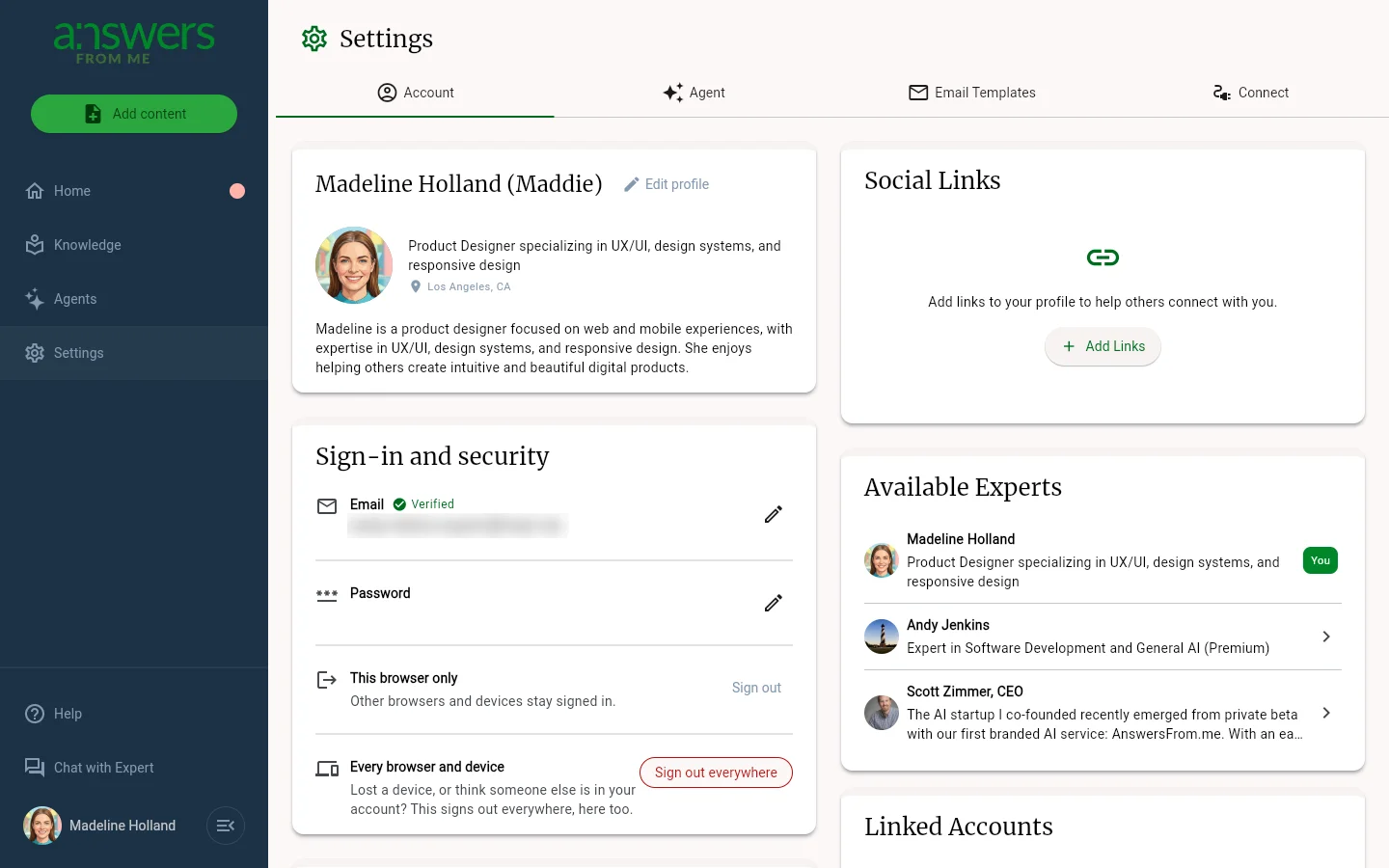
The Account tab covers you and your plan:
- Profile — your name, headline, photo and bio. Click Edit profile to change them
- Sign-in and security — your sign-in email and password, and where you sign out. See Sign-in and security below
- Usage — how much of each plan limit you've used this month or in total
- Subscription Plan — your current plan, and the other plans you can upgrade or downgrade to
- Social Links — links shown on your Expert Page
- Linked Accounts and Account Management, where you can connect Discord or permanently delete your data
Sign-in and security
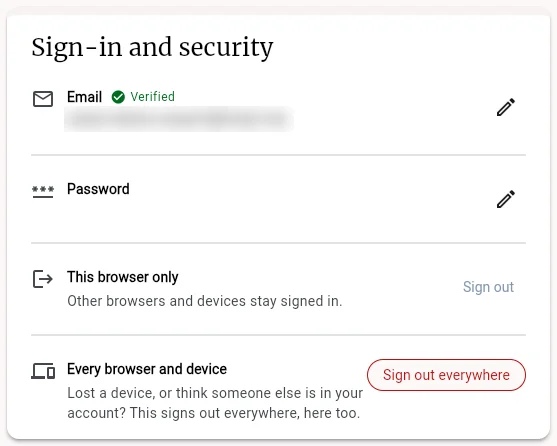
The Sign-in and security card sits under your profile. It has four rows:
- Email — the address you sign in with. A badge shows whether it is Verified, or whether a change is pending
- Password — change your password, or add one if you signed up with Google
- This browser only — Sign out signs out this browser. Other browsers and devices stay signed in
- Every browser and device — Sign out everywhere signs out every browser and device signed in to your account, this one included. Use it if you lose a device or think someone else is in your account
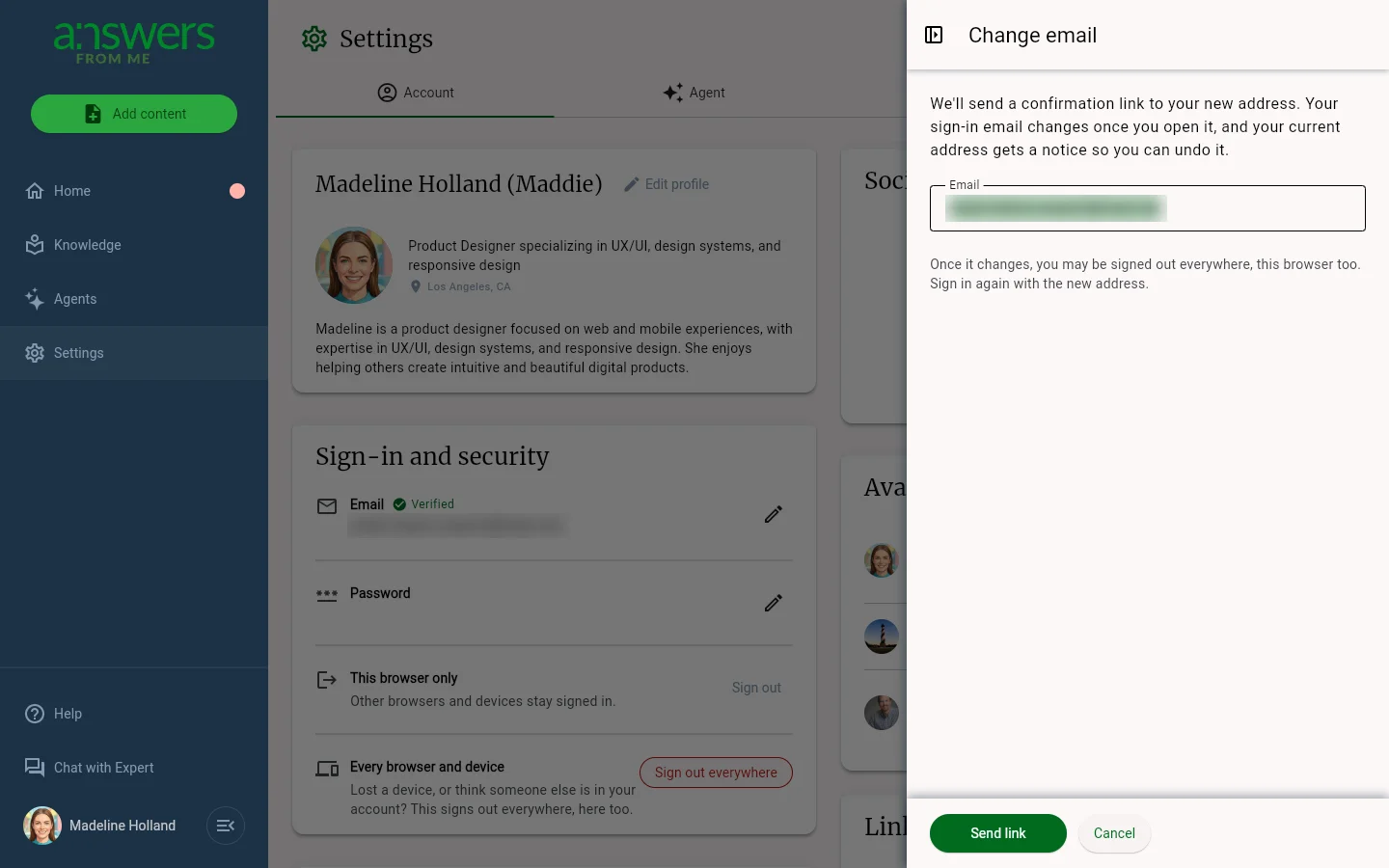
Change your email. Click the pencil on the Email row, type the new address and click Send link. Your sign-in email changes once you open the confirmation link sent to the new address, and your current address gets a notice so you can undo it. Until then the card shows the change as pending. After the change you may be signed out everywhere; sign in again with the new address. If you signed in more than five minutes ago, you'll be asked to confirm it's you first, and the button reads Continue.
Change your password. Click the pencil on the Password row. Enter your current password, then the new one twice (at least 6 characters), and click Change password. Other browsers and devices are signed out; this one stays signed in. Forgot your current password? Click Email me a reset link on the same sheet. Opening that link signs this browser out too.
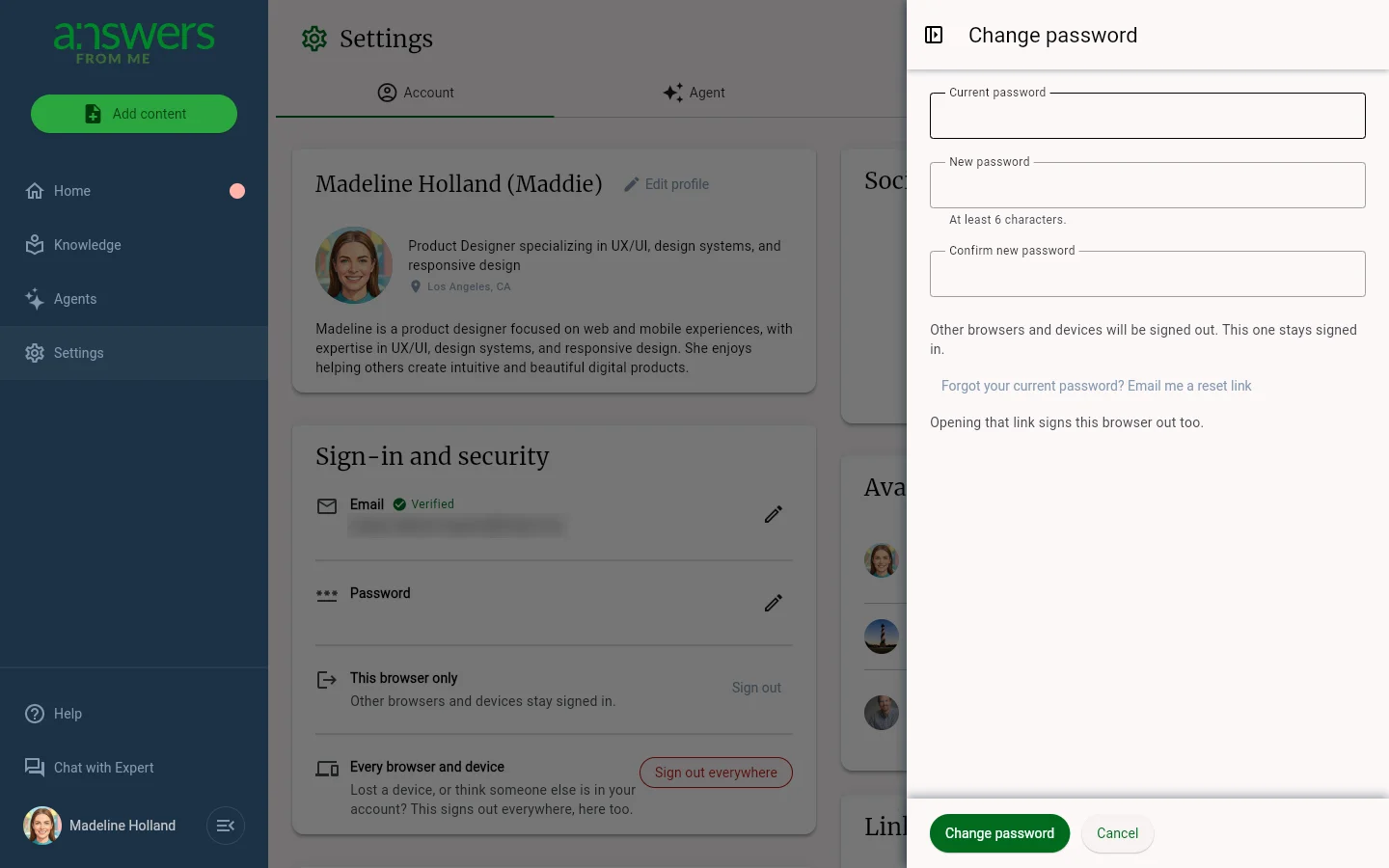
Add a password. If you signed up with Continue with Google, the Password row says Password not set. Click its pencil to add one, so you can also sign in with your email and a password. If you signed in more than five minutes ago, you'll confirm with Google first.
Agent
The Agent tab controls how people reach your agent and how you hear about it:
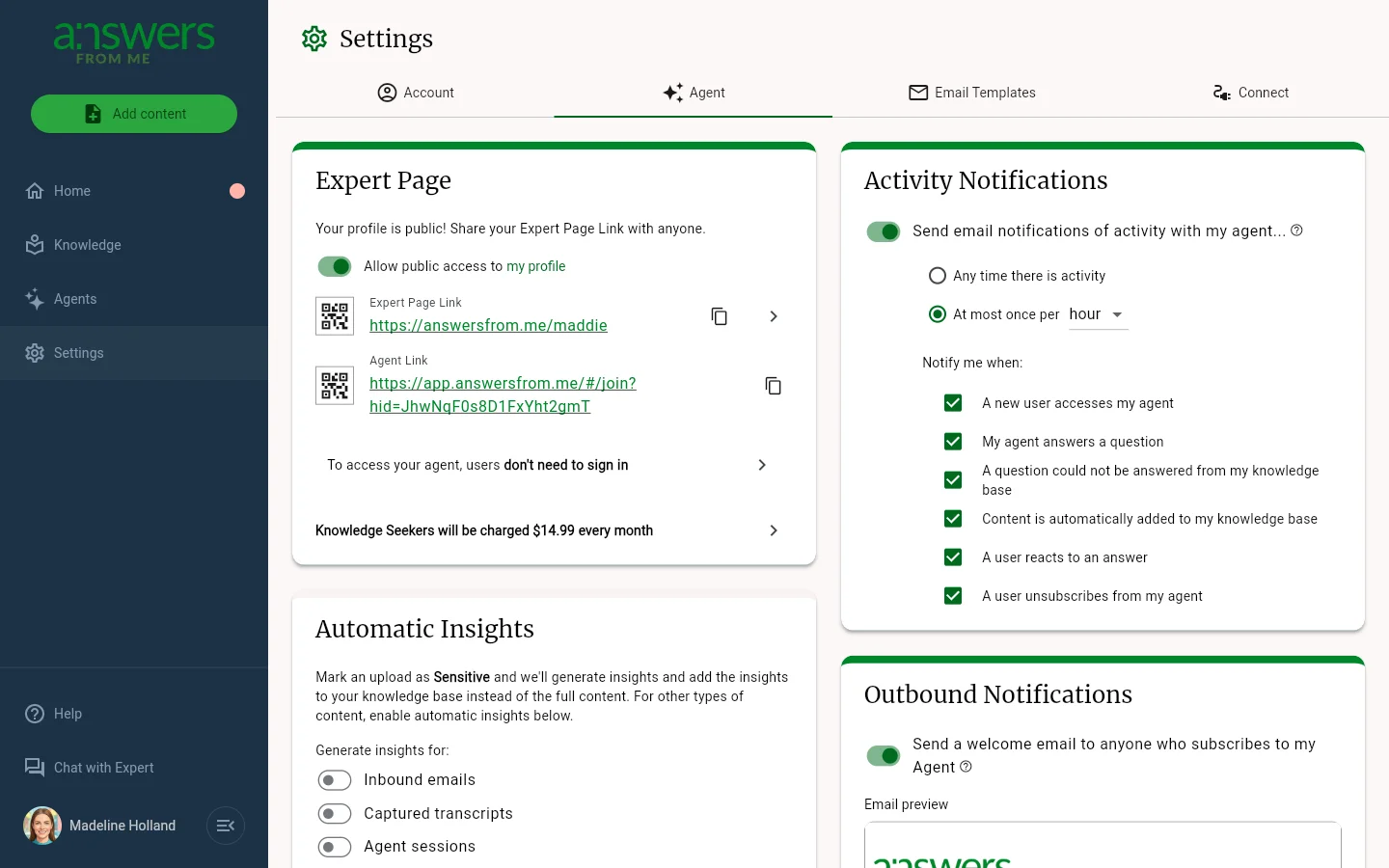
- Expert Page — toggle public access to your profile, and copy or download the QR code for your Expert Page Link and Agent Link. This card also shows whether people need to sign in before they can reach your agent, and what seekers are charged. Click the charge row to open Agent monetization (Pro plan). See Paid Agents and Monetizing Your Expertise
- Automatic Insights — generate short insights from your conversations and add them to your Knowledge Base, with separate toggles for inbound emails, captured transcripts, and agent sessions. See Insights
- Activity Notifications — email alerts for activity with your agent, such as new seekers, answered questions, and questions your knowledge base couldn't answer. Choose Any time there is activity, or at most once per hour, day or week. Activity alerts need the Basic plan or higher
- Outbound Notifications — send a welcome email to anyone who subscribes to your agent, with a preview of the email
Email Templates
The Email Templates tab lets you customize the emails sent to seekers when you invite them. Start from the Standard Invite or click Add template to write your own.
Connect
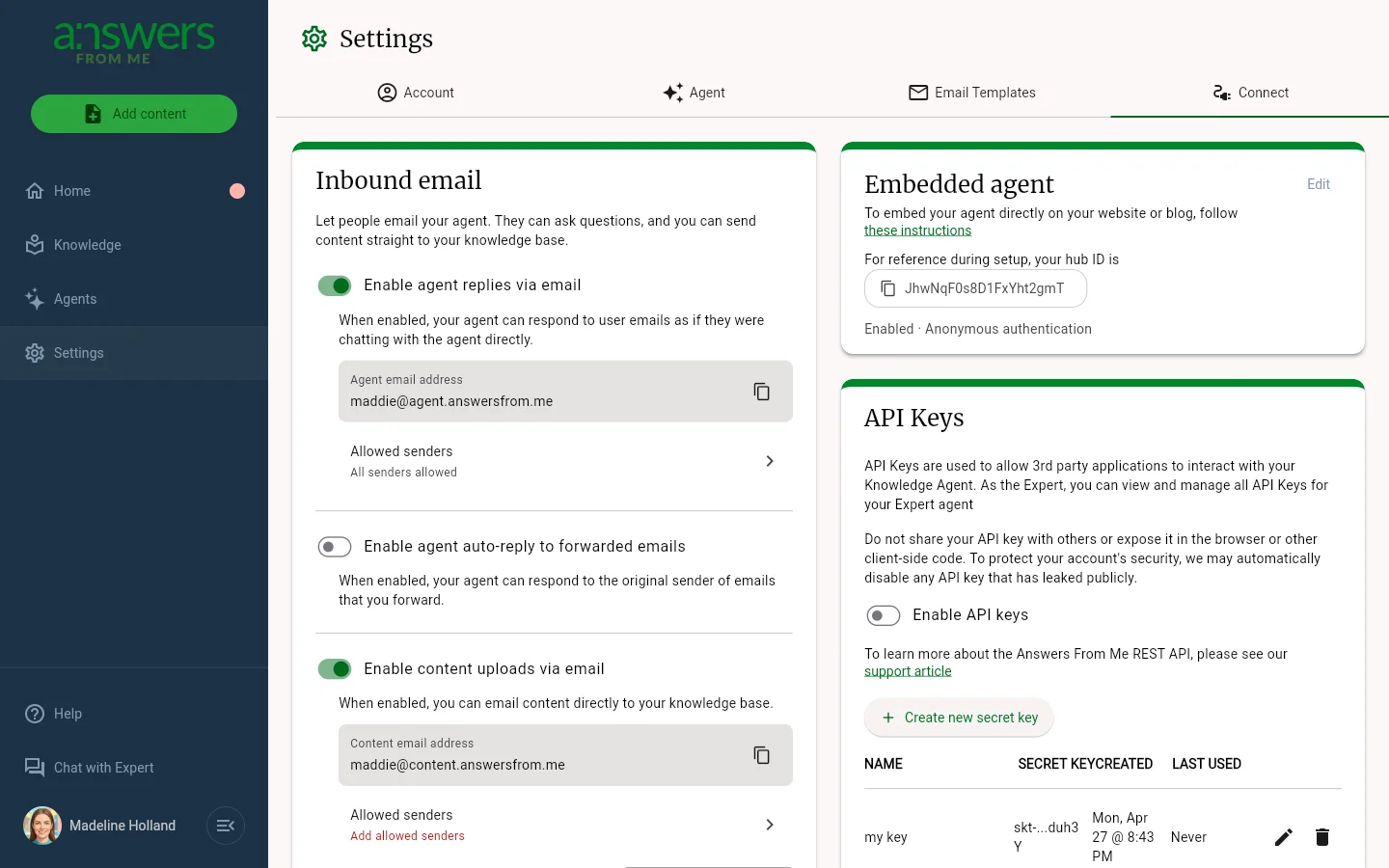
The Connect tab links your agent to email, websites and other apps:
- Inbound email — let people email questions to your agent, have your agent reply to emails you forward, and send content to your knowledge base by email. See Inbound Email Overview. Inbound email needs the Plus plan or higher
- Embedded agent — put your agent on your own website. See Embed your Answers From Me AI Agent
- API Keys — create secret keys for the API. Turn on Enable API keys first; API access needs the Basic plan or higher. See Open Responses API and Expert REST API
- API Access — let other developers' API keys reach your agent
To run your agent from an AI tool such as Claude or ChatGPT, no key is needed on any plan. See Manage Your Agent from Claude or ChatGPT.