Manage Your Agent from Claude or ChatGPT
You can manage your Answers From Me agent from the web app, from an AI tool such as Claude or ChatGPT, or both. The web app is where you set up your agent and see everything at a glance. An AI tool is handy when you're already working there: you can catch up on what seekers asked, fill gaps in your knowledge base, and fix an answer in the same conversation as the rest of your work. Everything you do from either place lands in the same knowledge base and the same dashboard.
Why manage your Answers From Me agent from your personal agent? The two kinds of agent work together. Your personal AI tool works privately with your files and accounts; your Answers From Me agent speaks for you in public, from only the knowledge you've chosen to give it. Using a Personal Agent? You Might Need an Emissary, Too explains why both are worth having.
Connect your AI tool
Your AI tool connects to Answers From Me through our MCP server, using a single URL and a one-time sign-in. The MCP Server article has the steps. Sign in with the account that has your expert agent, and your AI tool gets the expert tools along with the ones for asking experts.
Running your agent from an AI tool works on every plan, including Free. Your plan's usage limits apply just as they do in the web app.
What you can do from your AI tool
| From your AI tool (any plan) | With the REST API (API access, Basic plan or higher) | In the web app only |
|---|---|---|
| Add text, links and files to your knowledge base | Everything your AI tool can do | Deleting your hub or account |
| List and read your content | Change your agent's settings | Monetization |
| Remove content you added from an AI tool | Change a source's options and rescan it | API keys |
| Catch up on activity and usage | Hide or unhide items of a source | Your handle |
| Read seeker conversations | Delete any source, including content added in the web app | Billing and checkout |
| Revise answers, including held ones | Generate and list insights | Embed settings |
| Save and list Q&A | The setup wizard's visual steps | |
| List and invite seekers |
The Expert REST API article covers the REST API, for scripts and agents that need more than an AI tool should do on your behalf.
Things to ask
You don't call anything directly. Ask in plain language and your AI tool decides what to do. Some requests that work well:
- Catch up: "What's happened with my Answers From Me agent since last week?"
- Fill gaps: "Which questions couldn't my agent answer this week? Draft answers from my notes and show me each one before adding it."
- Revise an answer: "Show me the answer my agent gave about refunds yesterday. I'd like to send the seeker a better one."
- Add a link or text: "Add https://example.com/my-latest-post to my knowledge base." Or, after writing something together: "Save that as 'Pricing FAQ' in my knowledge base."
- Write together: "Open my onboarding guide from my knowledge base and help me tighten it up."
- Check usage: "How close am I to my Answers From Me plan limits?"
- Invite someone: "Invite jane@example.com to my audience."
Guided workflows
Four workflows walk you through common jobs step by step: Weekly review, Fill knowledge gaps, Write content together and Check usage. AI tools that support MCP prompts list them alongside the connector, and Claude Code shows them as slash commands. Where your tool doesn't list them (ChatGPT, for example), ask in plain language, such as "Let's do my weekly Answers From Me review," and your AI tool follows the same steps.
What asks first, and what doesn't
Three actions reach beyond your knowledge base, so they ask you to confirm first:
- Revising an answer sends your text to the seeker. You see the exact text before it goes.
- Inviting a seeker sends an email. You confirm the address. An address can be invited once.
- Removing content stops your agent answering from it.
Where your AI tool supports it, the confirmation is a form in the chat; otherwise your AI tool's own approval step asks you.
Adding content and saving a Q&A don't ask for a separate confirmation, because they change only your own knowledge base. Once added, though, your public agent answers from them after indexing. Read what your AI tool drafts before you tell it to add it, the way you'd review anything published under your name.
Content added in the web app
Your AI tool can list and read everything in your knowledge base. It can change or remove only content added from an AI tool or the REST API.
- Each piece of content added from an AI tool gets a short name, its content
key, such as
pricing-faq. Adding content under the same key replaces the old version. Sending identical text again changes nothing. - Content you added in the web app has no key, so it's read-only from your AI tool. If you ask to revise it, your AI tool saves the revision as a new copy under a new key. Remove the original on the Knowledge page in the web app.
- New content takes a few minutes to index before your agent answers from it.
Add files
Links and text are the simplest things to add from an AI tool: paste a link, or ask it to save something you wrote together. For a file on your computer:
- If your AI tool can read the file, ask it to upload it. Tools that work with files on your computer, such as Claude Code and other command-line tools, can upload a file directly.
- Some AI tools show a file picker in the chat when you ask to upload a file from your device. Pick the file and it's uploaded and added to your knowledge base without passing through the AI tool. Not every AI tool can show it, so treat it as a convenience. If it doesn't appear, restart your desktop app or use another route here.
- Upload on the Knowledge page in the Answers From Me web app, whichever AI tool you use.
In an AI tool that shows the picker, asking to upload files from your computer brings up a card like this in the chat:
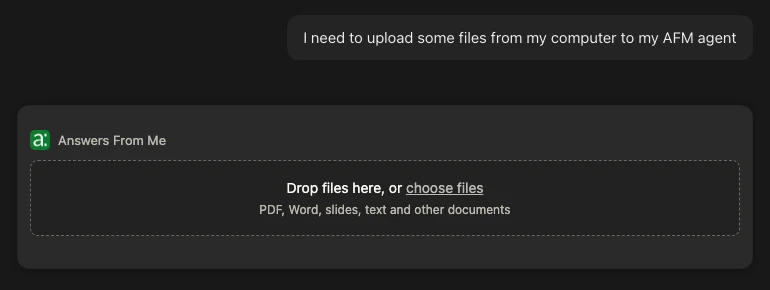
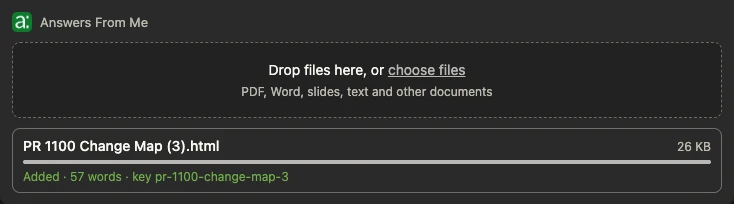
Drop or choose one or more files. Once a file is added, the card shows its word count and content key:
If an upload is blocked in a hosted chat such as claude.ai, see If something goes wrong for the allowlist setting that fixes it.
When your files finish, the card posts a short message in the chat, in your name, with each file's status and content key, so your AI tool knows they were added. If your AI tool doesn't respond to it, ask it to list your content. Long files can keep indexing for several minutes.
If something goes wrong
Each AI tool handles connectors a little differently. If a step here doesn't match what you see, check your AI tool's documentation for custom connectors or remote MCP servers.
- The expert tools don't show up. Make sure the connector is on for this conversation, and that you signed in with the account that has your expert agent. Disconnect and reconnect to sign in again. Connecting with an API key needs the Basic plan or higher; signing in with OAuth works on every plan.
- Tools or the file picker went missing after an update. A desktop app can keep the tool list from an earlier connection. Restart the app, then start a new conversation.
- The file picker doesn't appear. Your AI tool may not support it. Let the AI tool upload a file it can read, or upload on the Knowledge page.
- The file picker card still shows it taking the file in. Indexing a long file can outlast the card. Check the Knowledge page later, or ask your AI tool to list your content.
- An upload is blocked. Hosted chats run code in a sandbox that can block
outside websites. In claude.ai, add
upload.answersfrom.meunder Settings > Capabilities > Allowed websites. On a Team or Enterprise plan, an organization owner sets this under Organization settings > Capabilities. In other tools, check your tool's documentation for its network allowlist, or upload on the Knowledge page. - A plan limit is reached. Ask your AI tool to check your usage. It shows which limits are full and when they reset. Free up room in the web app, for example by removing content you no longer need, or upgrade. See Plans, Usage and Limits.
Still stuck? Ask your AI tool "How do I … in Answers From Me?" and it can look the answer up in this help center, or see Getting Help.