Add Agent-Based Search to Your Website in 5 Minutes
October 16, 2026
Site search hands visitors a list of links and leaves them to dig. They type a question, get ten pages that mention the right words, and give up before finding the answer.
Agent-based search skips the digging. Visitors ask in plain language and get a direct answer, drawn from your website and anything else you've taught your agent. With Answers From Me, the answer comes back in your own words, with citation links, and without leaving your page.
You also learn what people are actually looking for: every question and answer lands in your dashboard. Setup takes just a free account, your website's address, and a snippet of HTML. Set a five-minute timer and let's go.

What you need
All you need is a way to add HTML to your site. Most platforms have one: a Custom HTML block, a code-injection setting, or a footer-code field.
You don't need to be a developer. If you can paste text into a box, you can do this.
The 5-minute setup
Minute 1: Create your free account and describe your website
Go to www.answersfrom.me, click Create your Knowledge Agent, enter your email, and click Continue. Choose a password, or skip the form with Continue with Google. You'll receive a confirmation email. Click the link to verify your account.
Then click Start for free to become an Expert. It's free with no expiry, and no card is required. A short guided setup asks for your name, topics, and a one-line bio. Add at least one topic, and skip anything you'd rather finish later.
Minute 2: Teach your agent your website
Next comes adding content to train your agent. Your agent can only answer from what's in your Knowledge Hub, so add your own site. In your Expert Dashboard, click Add content, choose Link, and enter your website's address.
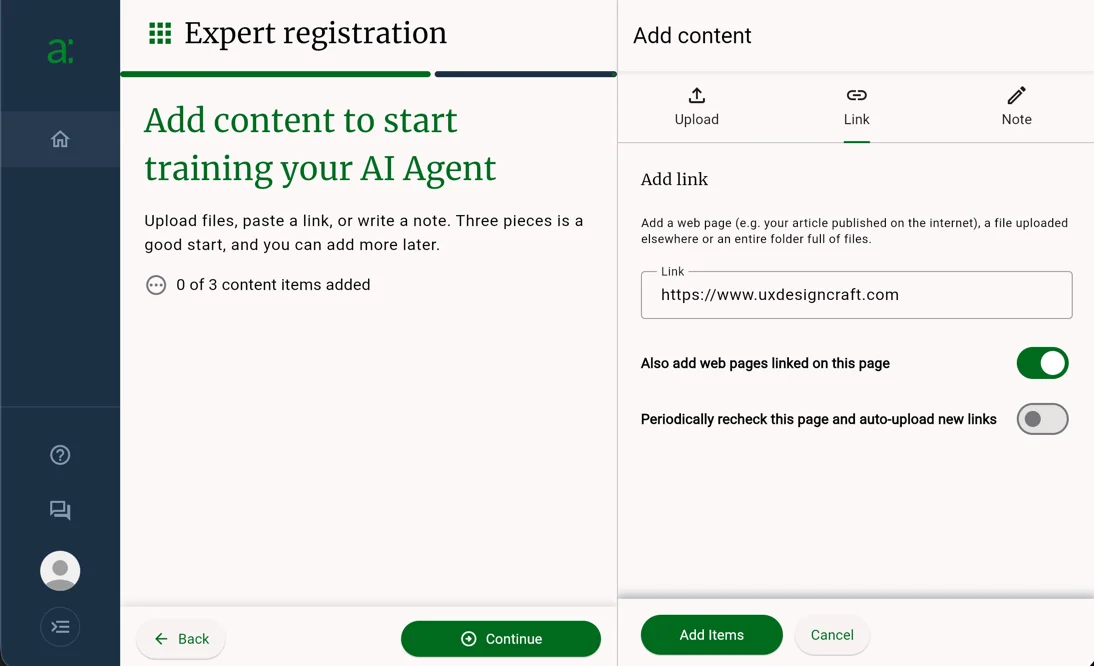
Before you continue, select Also add web pages linked on this page. Without it, your agent learns only the one page you entered. With it, Answers From Me crawls the rest of your site too.
Now your agent knows everything your site says. Depending on your site, this may take a few minutes, but you don't need to wait for it to finish. Click Continue to move on, where you can adjust your agent's personality (feel free to skip for now) and then again to get to your expert dashboard.
Minute 3: Copy your Hub ID
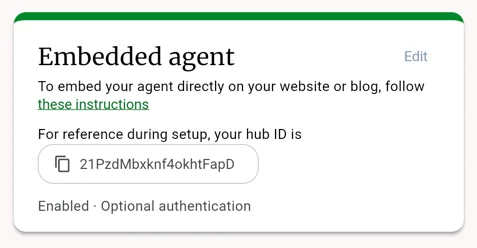
Your Embedded Agent is available at a unique ID. In your Expert Dashboard, click Settings, open the Connect tab, and scroll to Embedded agent. Click your Hub ID to copy it.
Minute 4: Paste the code
Open the page where you want the agent and paste this just before the closing
</body> tag. Replace YOUR_HUB_ID with the ID you copied.
<!-- Answers From Me embedded agent -->
<script src="https://app.answersfrom.me/seeker/embed-v2.js"></script>
<div id="afm-embedded-agent" data-afm-embed-hubId="YOUR_HUB_ID"></div>
That's it. Your agent is now embedded on your site!
Want a different button label, color, or icon? The Embed your Answers From Me AI Agent article in our help center lists every option.
Minute 5: Preview and publish
Preview the page, click Ask a Question, and ask a question your site answers. If the answer looks right, publish. Every question visitors ask, and your agent's answer, shows up in the Answers section of your dashboard, with the same notifications you already get.
Where to paste it on popular platforms
| Platform | Where the code goes | Result |
|---|---|---|
| Plain HTML site | Just before </body> on each page |
Agent on every page you edit |
| WordPress | Appearance → Widgets, add a Custom HTML widget to the footer | Agent sitewide |
| Thinkific | Admin Dashboard → Code & analytics → Site footer code, then Save | Agent on every page and in the course player |
| Platforms that only allow iframes | An iframe embed block | Agent always open, no launch button |
Using an iframe-only platform, or want a pop-up chat bubble instead of a drawer? The help center article covers both.
Your website now answers back
In five minutes your site went from a brochure to a conversation. Visitors get answers in your own words around the clock, and every question they ask tells you what your audience wants next.
To see an agent live first, visit www.answersfrom.me and click Get answers from our CEO. Ready to add yours? Create your free account and start the timer.
Where to go from here
Answers From Me is built to help experts share their knowledge with the world without giving up control. Your agent answers from your content, cites it, and shows you every question, so AI brings you closer to your audience instead of standing in for you.
Customize your agent
There are many ways to customize your agent. For example, you can change its initial greeting, add custom instructions about how it should answer, and even allow it to reach beyond your site to answer questions from the web. Check out the Agent Settings page to learn more.
Add more content to your Knowledge Hub
Your website is only the beginning of what your agent can learn. Add PDFs, videos, recorded talks, or quick notes to your Knowledge Hub, and your agent can answer from those too. Check the Answers section each week to spot questions it couldn't answer well, then add content to fill the gaps.
Share your agent with a link
Then share your Expert Page.
Go to Settings → Agent → Expert Page, turn on Allow public access to my
profile, and pick a handle (we set one for you during setup, but you can change it).
Your expert page lives at answersfrom.me/yourhandle.
Add it to your email signature, social profiles, and speaker bios so people can
ask your agent from anywhere.